
Tracer! Lightbox tracing app
Angel KohArt & Design
4.1613.00 Reviews
- Version
- Varies With Device
- Installs
- 500.00K
- Age Rating
- Everyone
Screenshots
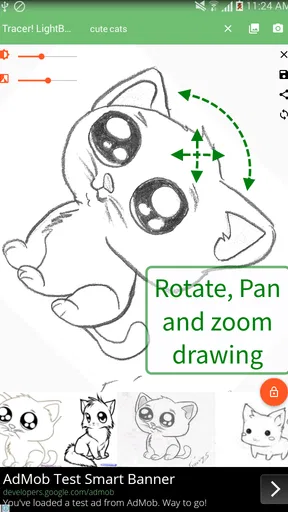
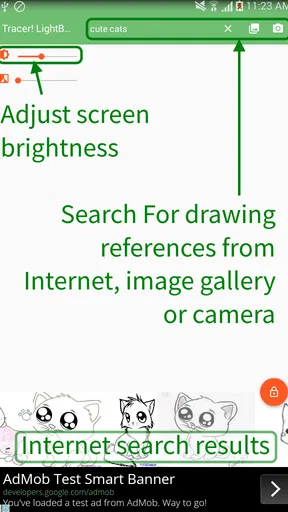
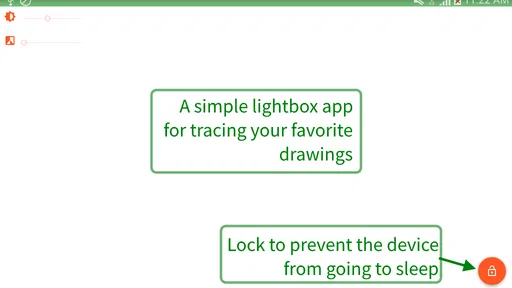
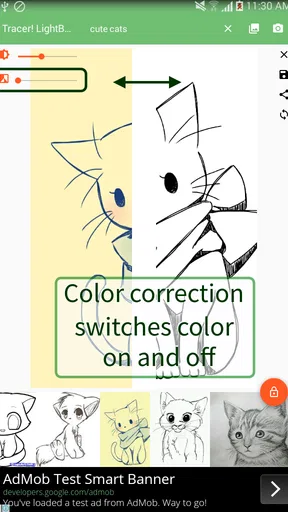
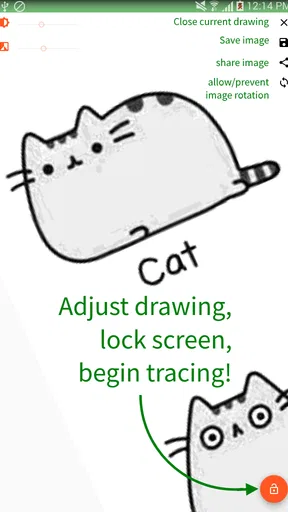
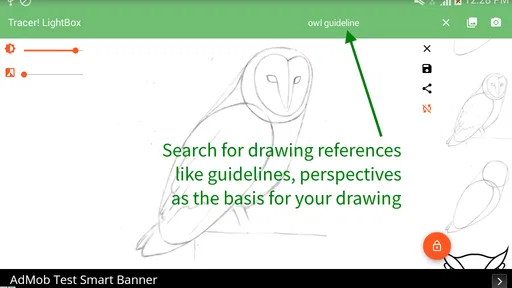
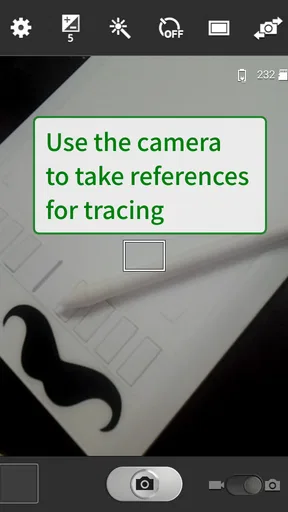
Our Review of Tracer! Lightbox tracing app
 Analysis by Appyee
When I want to turn a reference into a clean sketch, I usually need something simpler than a full drawing suite. Tracer! takes that focused approach: it acts as a lightbox and tracing utility, with a built-in search tool that helps me find an image before I start drawing. After spending time with it, I see the app less as a complete digital art studio and more as a practical bridge between looking at an image and reproducing its main shapes on paper.
That distinction matters. This is an Android Art & Design app from Angel Koh, and it is free to use. Its appeal is not a huge brush library or a long list of editing controls. The central idea is direct: place a reference where you can see it, use the screen as a guide, and trace with your own hand. For beginners, children, hobby artists, and anyone practicing proportions, that narrow purpose can be more useful than an intimidating professional canvas.
The app has been available since August 22, 2016, and its continued presence is reflected in a 4.1 average from around 3.2 thousand ratings, with more than 500 thousand installs. It is rated for Everyone, which fits the straightforward nature of the tool. I would still judge the experience by the actual workflow rather than by popularity, because a tracing utility succeeds or fails on small practical details: how quickly I can find a reference, how comfortably I can position it, and whether the screen remains useful while I draw.
Tracing is the feature that defines the whole experience
The most important capability here is the lightbox-style view. Instead of asking me to recreate an image from memory or constantly switch between a reference and a blank page, the app keeps the visual guide in front of me while I work. That changes the task from “draw this object” into a series of manageable observations: follow the outer contour, check the angle, notice where one shape overlaps another, and gradually build the picture.
I find this especially helpful when I am learning to judge proportion. A reference can show me that an eye is too high, a wheel is too small, or the curve of a leaf is too flat. Tracing does not automatically teach every drawing skill, but it gives immediate visual feedback. I can compare my line with the image while the subject is still in front of me instead of discovering the mistake later.
The built-in search is an important part of that idea. It means the app is not only a surface for tracing an image already stored on the phone; it also helps me begin the reference-finding stage inside the same general workflow. That is useful when I have a subject in mind but no prepared picture. I can search for an object, character, animal, plant, or simple scene, then use the result as the starting point for practice.
In my experience, this makes the app feel more immediate than opening a general image viewer and then trying to improvise a tracing setup. The search capability is not the artistic result by itself, but it removes a small barrier that often stops casual users. When the reference is easy to locate, I am more likely to practice for ten minutes instead of abandoning the idea before drawing the first line.
There is also a useful psychological effect. A blank page can make a new artist hesitate because every mark feels permanent and important. A visible reference gives the first stroke a clear purpose. I can concentrate on one contour at a time, and that makes the activity feel approachable. For a child or a complete beginner, this can be the difference between enjoying a drawing session and deciding that drawing is too difficult.
How I use the workflow in practice
I begin with a reference that has a clear subject and a reasonably simple outline. A crowded photograph may contain too many textures, shadows, and overlapping objects to be a comfortable first exercise. A picture with a strong silhouette works better because I can focus on structure before worrying about detail.
Once the image is available, I treat the screen as a visual guide rather than expecting the app to create the finished drawing for me. I keep my paper and pencil aligned with the visible reference, then work from large forms to small ones. For a face, that might mean the head shape first, followed by the placement of the eyes, nose, and mouth. For a bicycle, I would establish the wheels and frame before attempting the smaller components.
This order is one of the most useful habits the app encourages. Tracing every tiny detail immediately can produce a busy drawing with incorrect proportions. I get better results when I pause after the main outline and ask whether the overall shape looks right. The lightbox view makes that check easier because I can compare the drawing directly with the reference while the structure is still flexible.
A practical tip is to use the built-in search for several references instead of accepting the first image that appears. The best tracing source is not always the most attractive picture. A side view may be easier than a dramatic perspective shot, and a well-lit object may be more useful than a heavily filtered one. Choosing the right reference has a bigger effect on the result than spending extra time on tiny lines.
I also recommend starting with a limited goal. Rather than trying to reproduce an entire illustration, I might trace only the outline of a bird, the shape of a shoe, or the main pose of a person. This keeps the exercise short and gives me a clear way to judge progress. After that, I can repeat the subject without tracing and see which parts I actually remembered.
That last step is important if the goal is learning rather than simply producing a copy. Tracing can help me understand curves, spacing, and relationships, but it becomes more valuable when I use the reference as a temporary scaffold. I can trace once, hide or leave the reference, and then attempt the same subject from observation. The app supports that kind of practice because it makes the reference stage convenient, but the improvement still depends on what I do afterward.
The most useful everyday scenario
The strongest use case for me is a short practice session at home when I want a guided drawing activity without setting up a complicated digital workspace. Imagine finding a picture of a cat, searching for a side-facing pose, and tracing the body outline onto paper. I can then add the ears, paws, and facial placement, compare the result with the reference, and stop after a manageable session. The process feels more like a focused exercise than a technical project.
It also works well for a parent or teacher looking for an accessible activity. Because the app is rated Everyone and centers on a visible reference, a child can understand the basic idea quickly. An adult can help choose images with simple shapes, while the child handles the pencil work. The app does not need to replace teaching; it simply gives the learner something concrete to observe.
Another realistic scenario is preparing a handmade card or small decoration. I might search for a simple flower, trace the basic form, and then adapt it with my own colors or lettering on paper. In that situation, the app is valuable because it helps with the outline while leaving the creative decisions to me. I am not limited to copying the reference exactly; I can use it as a starting point for a physical project.
For craft work, the choice of reference becomes even more important. A complicated image may look impressive on a phone but translate poorly to paper. I get better results from bold shapes and uncluttered compositions. This is one of the app’s less obvious strengths: it encourages me to think about an image as a set of drawable forms rather than merely as something attractive to view.
I would not use it as my main tool for painting, photo editing, animation, or finished digital illustration. The tracing view is valuable precisely because it is focused. Someone who wants layers, advanced brushes, masks, color management, or a broad illustration workspace will probably be happier with a dedicated art application. Tracer! is better at helping me get a reference onto the page than at managing the entire creative process.
Where the simple approach helps—and where it gets in the way
The simplicity is the main advantage, but it is also the main trade-off. I can understand the purpose quickly, and I do not have to learn a large interface before beginning. On the other hand, users expecting a complete drawing environment may find the experience limited. The app’s value depends on whether I want guided physical drawing or a full digital production workflow.
The lightbox concept also works best when I have a stable setup. If I am trying to draw while holding the phone in one hand, the experience becomes awkward. I need the device positioned so the reference stays visible and the paper remains comfortable to use. That is not a flaw unique to this app, but it is a real part of using a screen as a tracing guide. A stand or a carefully arranged desk can make the session much more pleasant.
Screen size affects the experience too. A larger display gives me more room to inspect the reference, while a smaller phone screen can make detailed subjects feel cramped. I would choose simple, bold references on a compact device and reserve intricate images for a setup where I can see the shapes clearly. The app can simplify the reference stage, but it cannot remove the physical limits of the screen.
The built-in search is convenient, yet convenience should not replace judgment. Search results can vary in suitability, and not every image will have the clear contours needed for tracing. I treat search as a way to collect candidates, then choose the one with the best pose, contrast, and separation between shapes. That extra selection step prevents a common frustration: blaming the tracing process when the real problem is a poor reference.
Another trade-off is that tracing can make an early result look better than my independent drawing ability. That is not necessarily bad, but I need to be honest about what I am practicing. If I only trace finished outlines, I may improve hand control without developing much confidence in constructing forms. I get more from the app when I combine tracing with observation, redraw the subject afterward, and occasionally alter the reference instead of following every line.
For that reason, I would skip this app if I mainly want to create polished digital artwork entirely on the phone. I would also look elsewhere if I need a specialized tool for professional illustration or detailed editing. A conventional drawing app offers more control over the final digital image, while a camera-based or augmented-reality tracing solution may suit someone who wants a projected guide over a real surface. Tracer! makes the most sense when the reference itself is the central aid.
Small techniques that make the app more useful
My first recommendation is to separate outline practice from detail practice. I use one session to follow the major silhouette, then another to study internal features. This prevents the common mistake of producing a detailed but distorted drawing. The app’s direct visual comparison makes it easy to notice whether the large forms are correct before I spend time decorating them.
Second, I use references with different levels of complexity in sequence. I might begin with a single object, move to an object with overlapping parts, and only then attempt a scene. This creates a natural progression without requiring a formal lesson plan. The built-in search is particularly helpful here because I can look for a new subject as soon as I finish the previous exercise.
Third, I use the app to study shape relationships rather than only copying edges. If I am tracing a face, I pay attention to the distance between features. If I am tracing a vehicle, I look at the angle between the wheels and the body. These relationships are what help me draw the next version without a guide. The lightbox is most educational when I use it to ask why a line sits where it does.
A fourth technique is to make a quick memory redraw after closing the session. It does not need to be polished. Even a rough attempt shows which forms I understood and which ones I merely followed mechanically. This turns the app from a copying aid into part of a repeatable learning loop: observe, trace, recall, and correct.
Finally, I avoid choosing references solely because they are visually impressive. A clean image with a readable outline is often more valuable than a dramatic photograph full of shadows. That choice saves time and makes the experience less frustrating, especially for younger users. The app gives me access to a reference workflow, but I still need to curate what I put into it.
Who benefits most from this focused tool?
Beginners are the clearest audience. If I am still learning how to control a pencil, estimate proportion, or simplify an object into basic forms, the visible guide gives me a practical starting point. It can also help hobby artists who want a quick warm-up before working without assistance. The free price makes experimentation easy, so I can test the method without committing to a paid art package.
Parents, educators, and casual crafters may also appreciate the low barrier to entry. The app can support a drawing prompt, a handmade project, or a short observation exercise. Its Everyone rating makes it suitable for a broad audience, although the quality of the activity will still depend on the references selected and the amount of guidance provided.
More experienced artists can use it in a narrower way. I would not rely on it to replace gesture practice, perspective study, or independent construction, but I could use it to inspect a difficult contour or warm up with unfamiliar subjects. The benefit is speed: I can move from finding a reference to studying its structure without assembling several separate tools.
People who should pass are those looking for a deep digital art workstation. If layers, advanced brush behavior, extensive editing, or a polished final file are central to your work, this app’s focused tracing purpose will feel too narrow. It is also not the best fit if you dislike drawing from a screen or want a guide projected directly onto a large physical surface.
My final view is favorable, with the right expectations. Tracer! is not trying to be an all-purpose art studio; it is a practical reference-and-tracing companion. The built-in search makes starting easier, while the lightbox approach helps me see proportion and contour in real time. Its limitations are clear, but they are closely tied to its focused design rather than signs that the app is failing at its job.
For a free Art & Design app from Angel Koh, it offers a useful way to make drawing feel less intimidating and more structured. I would recommend it to anyone who wants to practice on paper, prepare a simple craft project, or give a beginner an approachable first step. I would choose a more advanced alternative for serious digital illustration, but when the goal is to find a reference and turn its shapes into a hand-drawn result, this is a tool I would gladly keep available.
Verdict
Strengths of Tracer! Lightbox tracing app
- Turns your phone or tablet into a portable lightbox for tracing.
- Adjustable screen brightness helps with different paper thicknesses.
- Simple interface makes it easy to start tracing quickly.
- Screen lock prevents accidental touches while working.
- Useful for sketches, lettering, crafts, and basic animation frames.
Limitations of Tracer! Lightbox tracing app
- Requires a flat, stable surface for comfortable tracing.
- Extended use at high brightness can drain the battery quickly.
- Small screens may feel cramped for larger drawings.
- Touch controls can be difficult to access once paper covers the display.
- Not a replacement for advanced drawing or illustration software.
Similar Picks in This Category
View All
Canva: AI Photo & Video Editor
Canva4.8

PENUP – Drawing-sharing SNS
Samsung Electronics Co., Ltd.4.5

Crafto
Kutumb App4.6

Sketchbook
Sketchbook4.1

ibis Paint X
ibis inc.4.5

Adobe Express: AI Photo, Video
Adobe4.6
Frequently Asked Questions
What is Tracer! Lightbox tracing app used for?
Tracer! Lightbox is designed to help users trace images, sketches, lettering, and simple illustrations by displaying a reference picture on the screen while placing paper over the device. It turns your Android or iOS phone or tablet into a basic digital lightbox, making it useful for beginners, students, hobby artists, crafters, and anyone who wants help reproducing an image by hand.
How does Tracer! Lightbox work when tracing on paper?
After selecting an image from your device or using an available reference, the app displays it on the screen with adjustable brightness and transparency options, depending on the version and device. You then place a sheet of thin paper over the screen and trace the visible lines. For better results, disable accidental touches, lock the image if possible, and avoid pressing hard because the display is not designed to function as a drawing surface.
Can I import my own photos or drawings into Tracer! Lightbox?
In general, Tracer! Lightbox is intended to work with images stored on your device, allowing you to choose a personal photo, sketch, or downloaded reference for tracing. Image-import options can vary between app versions and operating systems, so you should check the permissions requested during setup. Make sure you have the right to use any image you import, especially if you plan to publish or sell the finished artwork.
Is Tracer! Lightbox suitable for children and beginners?
Yes, the app can be a convenient introduction to drawing because it reduces the difficulty of copying proportions and basic outlines. Children can use it for crafts, coloring pages, school projects, or practicing shapes, while beginners can build confidence before drawing without a guide. Adult supervision is recommended for younger users, particularly when handling the phone or tablet and placing paper over the screen.
Does using Tracer! Lightbox damage the phone or tablet screen?
The app itself should not damage a device because it simply displays an image, but placing paper, pencils, or other materials directly on the screen requires care. Use clean, smooth paper, avoid sharp tools and excessive pressure, and do not cover ventilation areas on larger devices. A screen protector may provide extra protection, although it can slightly affect brightness or image visibility while tracing.
